


Today, almost everything in life is connected to your computer or laptop – personal chats, work files, bank details, and even memories like photos and videos. Think of your device as a digital home or a treasure chest full of valuable information that cybercriminals would love to steal.
Now imagine that treasure chest without a proper lock. That is what a computer with weak security looks like. Cyber threats are becoming more advanced every year, from phishing emails and malware to ransomware and account takeovers. It is normal to feel confused by complex security advice, but protecting yourself does not have to be difficult.
This guide shares five simple, practical steps to improve your computer security and protect your digital life. By following these steps, you will reduce the risk of malware, scams, and data loss, while keeping your everyday online activities safe.
1. Use the Web Carefully and Wisely
The internet is a powerful tool, but it is also full of fake news, scams, and malicious websites that can steal your data or install malware on your device. Being careful about what you click and which sites you trust is one of the strongest defenses you have.
Why it matters
- Avoid misinformation: The web is flooded with content, but not all of it is accurate or honest. False or misleading information can influence your decisions, especially around finance, health, and security.
- Protect your personal data: Every time you share details like your name, email, phone number, or ID online, you increase your exposure to identity theft, fraud, or social engineering attacks.
How to browse more safely
- Check source credibility: Prefer well-known websites, official organizations, universities, and established news portals. Avoid sites with clickbait headlines, too many pop-ups, or no clear information about who owns or runs them.
- Look for secure connections: Before entering any sensitive information (like passwords or card details), make sure the site uses HTTPS. You should see “https://” in the URL and a padlock icon in the address bar. This indicates the connection is encrypted and safer for sharing data.
- Be careful with unknown links: Do not click on links sent from unknown people on email, SMS, or social media. Phishing pages are often designed to look like banking, shopping, or login portals to trick you into entering your credentials.
- Read reviews before trusting services: When trying a new website, app, or online service, quickly check user reviews on trusted platforms. Avoid services with many fake-looking reviews that are overly positive or generic.
2. Keep Your Software and System Updated
Keeping your operating system, browser, and applications updated is one of the most effective ways to protect your computer. Outdated software often contains known security holes that hackers actively scan for and exploit.
Studies and incident reports show that a large percentage of data breaches happen because systems were not patched in time. Cybercriminals rely on users ignoring updates so they can use these weaknesses to install malware, steal data, or take control of devices.
Why updates are important
- Fix known vulnerabilities: Updates often include security patches that close the exact gaps attackers are using in the wild.
- Improve stability and performance: Updated software usually runs more smoothly, crashes less, and is better optimized for modern hardware and networks.
How to manage updates
- Enable automatic updates: Turn on automatic updates for your operating system (Windows, macOS, Linux), browser (Chrome, Edge, Firefox, etc.), and security tools. This ensures you receive the latest patches without manual effort.
- Manually check weekly: For apps that do not auto-update, set a weekly reminder to check for newer versions, especially for VPNs, office suites, developer tools, and plugins.
- Update firmware when needed: Routers and network devices also get security updates. Logging into your router occasionally and applying firmware updates helps protect your home network from remote attacks.
Think of updates as regularly reinforcing the doors and windows of your digital home. Every patch makes it harder for attackers to get in.
3. Use Strong, Unique Passwords (and a Password Manager)
Your passwords are often the only thing standing between an attacker and your accounts. Weak or reused passwords are still one of the most common reasons accounts get hacked.
What makes a strong password
- Length: Aim for at least 12–16 characters. Longer passwords are much harder to crack using brute-force methods.
- Complexity: Use a mix of uppercase letters, lowercase letters, numbers, and special characters. Avoid obvious words, names, birthdates, or patterns like “123456” or “qwerty”.
- Uniqueness: Never reuse the same password across important accounts such as email, banking, social media, and cloud storage. If one site is breached, reused passwords let attackers break into multiple services at once.
Make it easier with a password manager
Remembering many complex passwords is difficult, and this is where a password manager helps. A password manager is a secure app that:
- Stores all your passwords in an encrypted vault.
- Generates strong, unique passwords for each account.
- Autofills logins on trusted devices and browsers.
With a password manager, you only need to remember one strong master password, while the tool takes care of the rest. This keeps your security high without overloading your memory.
For extra protection, enable two-factor or multi-factor authentication (2FA/MFA) wherever possible. This adds a second step (like a one-time code or app prompt), making it much harder for attackers to log in even if they have your password.
4. Back Up Your Data Regularly
Even with good security, things can still go wrong – hardware failure, accidental deletion, ransomware, or a serious malware infection. Regular backups ensure that your important files remain safe and recoverable, no matter what happens to your main device.
Why backups are essential
- Protection from ransomware and malware: If your files are encrypted or damaged, a clean backup allows you to restore your data without paying criminals.
- Recovery from accidents and failures: Devices can crash, drives can fail, and mistakes happen. A recent backup turns a serious loss into a temporary inconvenience.
Smart backup strategies
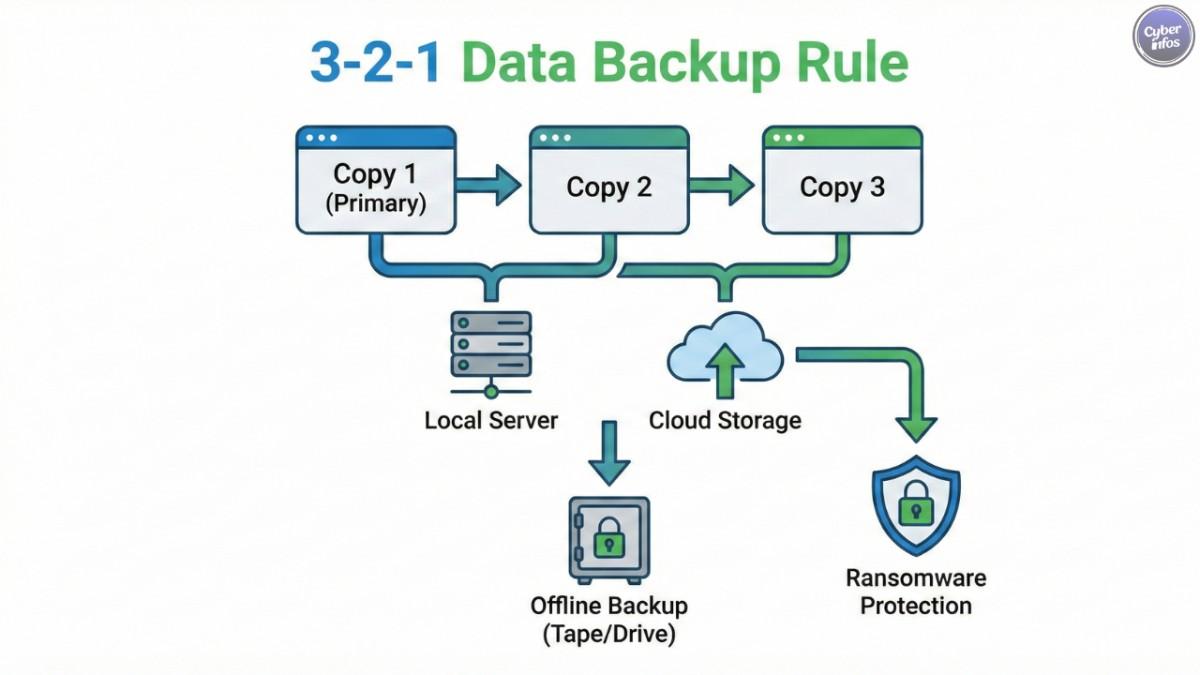
- Use cloud storage: Services like Google Drive, OneDrive, Dropbox, or other reputable cloud providers automatically sync and back up your files to secure servers. This gives you access from any device and adds resilience against local hardware failures.
- Keep an external backup: Use an external hard drive or SSD to create an offline backup of your most important files. Disconnect it after the backup so it cannot be affected by malware on your main system. Store it in a safe place.
- Follow the 3-2-1 rule: A common best practice is: 3 copies of your data, on 2 different types of storage, with 1 copy stored offsite (for example, in the cloud).
Backing up regularly gives you peace of mind. Even if something unexpected happens, your digital life is not destroyed.
5. Be Extremely Careful with Email Attachments and Links
Email is still one of the most common ways attackers deliver malware and steal credentials. Most modern phishing campaigns use links or attachments that look harmless but lead to credential-stealing pages or silently deliver malicious files.
Recent reports show that the majority of malware is delivered through email attachments, such as PDFs, ZIP files, and Office documents. These attachments can trick even experienced users if they are not paying close attention.
How to protect yourself from phishing
- Always verify the sender: Check the email address carefully, not just the display name. Attackers often use addresses that look similar to real companies or contacts. If something feels off, contact the person or organization through a known, official channel before clicking anything.
- Watch for red flags: Poor spelling, generic greetings (“Dear customer”), urgent language, unexpected invoices, or messages asking you to “verify your account” are classic warning signs. Emails that pressure you to act immediately are often malicious.
- Do not open unknown attachments: Never open attachments from unknown senders or from people you did not expect a file from. Even if the email looks like it is from a known contact, be cautious with unexpected files and confirm with them if necessary.
- Hover over links: Before clicking, move your mouse over a link and check the actual URL in the status bar. If the address looks strange, unrelated to the claimed sender, or is shortened with no context, avoid it.
- Use updated security software: A good, up-to-date antivirus/anti-malware solution can block many malicious attachments and dangerous links before they harm your system.
Being skeptical of emails and messages, especially those involving money, passwords, or personal data, is one of the most powerful habits you can build.
Final Thoughts
Computer security in 2026 is not about being perfect – it is about being careful, consistent, and informed. By browsing wisely, keeping your software updated, using strong unique passwords, backing up your data, and treating every email attachment and link with caution, you dramatically lower your risk of becoming a victim of cybercrime.
The digital world will keep changing, and new threats will appear, but these five practices will remain strong foundations for your safety. Start with one or two changes today, turn them into habits, and your computer – and your data – will be far safer for it.

1 Comment
Your blog post was a gem! The information you provided was well-researched, and your explanations were easy to follow.